If you are using an iPhone, you can easily connect to your Windows VPS using the Microsoft Remote Desktop app. This app is free and available on the App Store. With it, you can access your VPS just like using your computer.
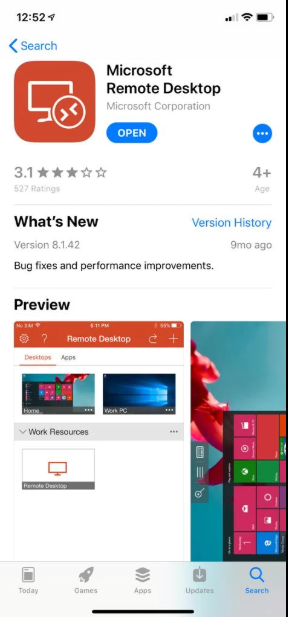
Step 1: Download Microsoft Remote Desktop
-
Open the App Store on your iPhone.
-
Search for Microsoft Remote Desktop.
-
Tap Get to install it.
Step 2: Collect VPS Login Details
Before connecting, make sure you have the following:
-
IP Address of your VPS
-
Username (usually
Administrator) -
Password provided by your hosting provider
Step 3: Open the Microsoft Remote Desktop App
-
Launch the app after installation.
-
Tap the “+” (Add) button.
-
Select Add PC.
Step 4: Configure VPS Connection
-
In the PC Name field, enter your VPS IP Address.
-
In the User Account section, choose Add User Account.
-
Enter Username (e.g.,
Administrator) -
Enter Password
-
Tap Save
-
Step 5: Connect to VPS
-
Tap the VPS connection you created.
-
A security certificate warning may appear – tap Continue.
-
You will now be connected to your Windows VPS.
Step 6: Control Your VPS
-
Use your finger to move the mouse pointer.
-
Use gestures like pinch-to-zoom to adjust the screen.
-
The toolbar at the top helps you switch sessions, show keyboard, or close the session.
✅ Now you can access your Windows VPS anytime from your iPhone.